MegaSpeed
Help Home
~
Quick
Installation
~ Detailed
Installation
~ Configuration
~ Frequently
Asked Questions ~ Connection
Troubleshooting ~ General
Troubleshooting
MegaSPEED
Web Accelerator for Macintosh - Configuration
top
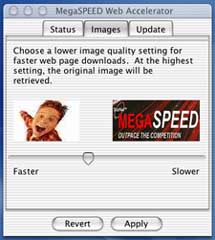
To adjust the image quality, slide the bar located on the "Images" tab of the Accelerator program. The two sample images on that screen will change to show you how images on websites will look at the current acceleration level. When you are done adjusting the image quality setting, click the Apply button to save your changes.
top
top
MegaSPEED
Web Accelerator for Macintosh - Configuration
1. Using MegaSPEED Web Accelerator.
- Launching MegaSPEED Web Accelerator
- Changing the Image Quality Setting
- Starting, Stopping, and Closing the Accelerator
2. Advanced Options.
- Bypassing MegaSPEED Web Accelerator for selected sites
- Accessing Product Version Information
- Accessing the Diagnostics Menu
Usage
Launching MegaSPEED Web Accelerator
To launch the MegaSPEED Web Accelerator, locate the application icon in your dock at the bottom of the screen or in your Applications directory. You can typically access the Applications directory by clicking the finder icon in your Dock, select your Hard Drive, and then select the Applications folder. After locating the MegaSPEED Web Accelerator icon, we recommend that you drag and drop that icon into the Dock. This will allow you to easily access this program in the future. top
Changing the Image Quality Setting
The image quality setting changes the appearance of images that appear in your web browser. The higher the quality you select, the longer it will take the image to load. For slower Internet connections, it is recommended that you lower your image quality. This slider can be adjusted anytime while browsing.To adjust the image quality, slide the bar located on the "Images" tab of the Accelerator program. The two sample images on that screen will change to show you how images on websites will look at the current acceleration level. When you are done adjusting the image quality setting, click the Apply button to save your changes.
top
Starting, Stopping, and Closing the Accelerator
Occasionally, you may need to stop or start the Accelerator manually.To Stop:
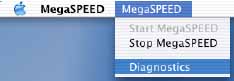
Select MegaSPEED from the Apple Menu Bar at the top, then
select Stop MegaSpeed.
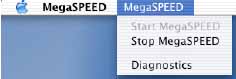
To Start:
Select MegaSPEED from the Apple Menu Bar then select Start
Mega speed.
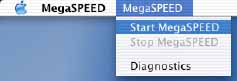
To Close:
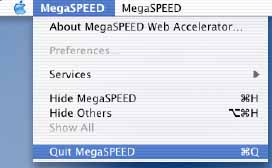
Select MegaSPEED from the Apple Menu Bar then select Quit
Mega speed or simply click the red circle in the upper left corner
of the
application.
top
Advanced Options
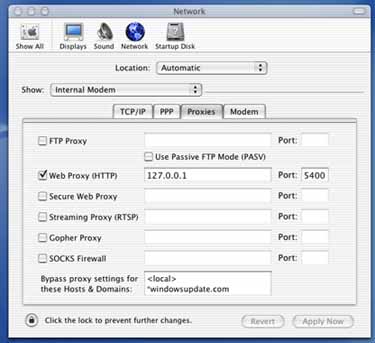
Bypassing MegaSPEED Web Accelerator for selected sites
In some cases, you may not want a website to pass through the Accelerator. This usually is where you need to enter a secure site by entering passwords. If you encounter this situation, you can stop acceleration on the specific sites through the Network settings in the Apple System Preferences.To access the Apple System Preferences and add sites to the exclusion list:
top
Accessing Product Version Information
You may view the product version in the About dialog. top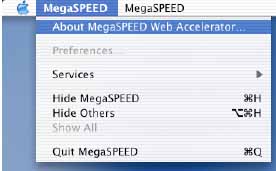
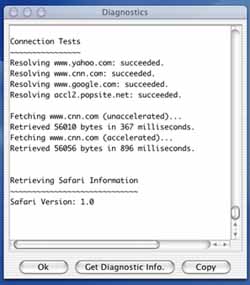
Accessing the Diagnostics Menu
If you encounter any technical issues, you may be asked to run the Diagnostics test. To access the diagnostics menu:top